Free · no sign-up · prints on letter or A4
Dot to Dot Printable Generator
Make a dot to dot printable: pick a picture, 10 to 100 dots, count by 1s, 2s, 5s or 10s or use letters. Free connect-the-dots sheets with an answer key.
Grades K–1Count in orderCCSS K.CC.A.1, K.CC.A.2
Name: ____________________ Date: ______________
Grades K–1 · Count in order · CCSS K.CC.A.1, K.CC.A.2
Answer key
k5print.com
Need 20 different versions at once, your own logo, no ads? Teacher Plan is coming — join the waitlist →
Grade levels and Common Core standards for this tool
The grade and standard on each sheet follow your settings. Here is every combination this tool can make:
| Grade | Skill | Common Core |
|---|---|---|
| Kindergarten | Letters in ABC order | RF.K.1.d |
| Grades K–2 | Count backward | None |
| Grades 1–2 | Count past 100 | 1.NBT.A.1, 2.NBT.A.2 |
| Grades K–1 | Count in order | K.CC.A.1, K.CC.A.2 |
| Grade 2 | Skip-count by 5s and 10s | 2.NBT.A.2 |
| Grades 1–3 | Skip-count by 2s, 3s or 25s | None |
- Counting backward is not named in the Common Core standards.
- Counting by 2s, 3s and 25s is not a separate Common Core standard.
- CCSS RF.K.1.d
- Recognize and name all upper- and lowercase letters of the alphabet.
- CCSS 1.NBT.A.1
- Count to 120, starting at any number less than 120. In this range, read and write numerals and represent a number of objects with a written numeral.
- CCSS 2.NBT.A.2
- Count within 1000; skip-count by 5s, 10s, and 100s.
- CCSS K.CC.A.1
- Count to 100 by ones and by tens.
- CCSS K.CC.A.2
- Count forward beginning from a given number within the known sequence (instead of having to begin at 1).
Standards text quoted from corestandards.org. K5Print is not affiliated with or endorsed by the Common Core State Standards Initiative.
© Copyright 2010. National Governors Association Center for Best Practices and Council of Chief State School Officers. All rights reserved.
The dot to dot generator makes printable connect-the-dots worksheets. You pick a picture, choose how many dots it has, and print the sheet or save it as a PDF. It runs in your web browser, so nothing is uploaded, and it is free with no account or sign-up needed.
The tool includes 25 original pictures, from a star or heart to a rocket or owl, and it can choose one at random. Dots can be numbered or labeled with letters. Numbers can count by 1s, 2s, 3s, 5s, 10s or 25s, which makes the sheet useful for counting and skip-counting practice. Each sheet can include an answer key on its own page, so you can check the finished picture quickly.
You can use what you make here in class or in things you sell, such as Amazon KDP activity books, Etsy printables and print-on-demand products, with no credit needed.
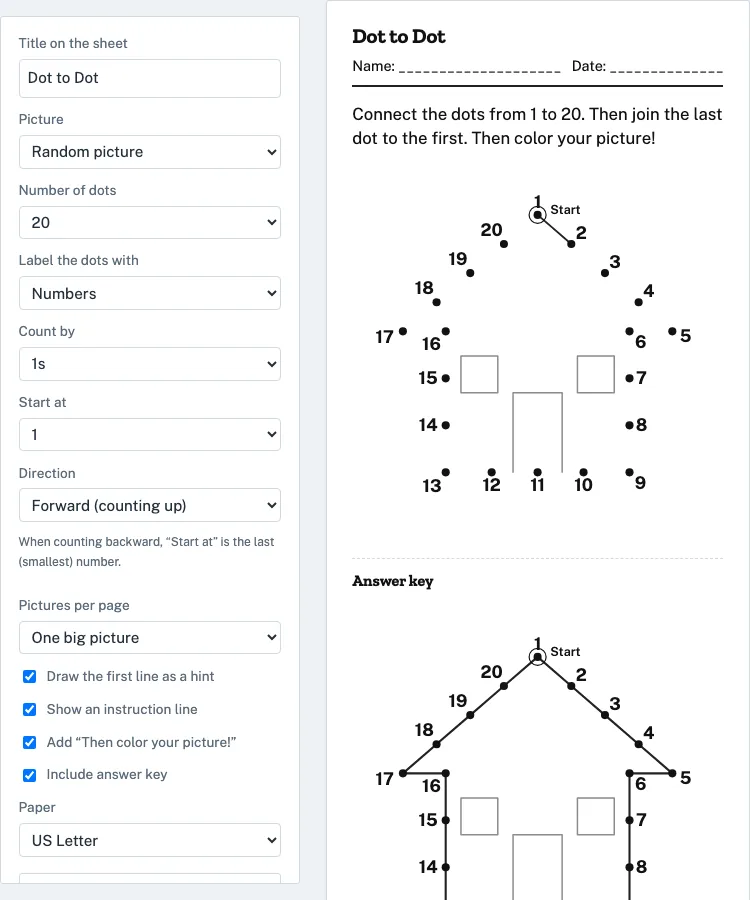
How to use the Dot to Dot Generator
- Choose a Picture. Pick one of the 25 pictures, or keep Random picture. Random easy picture and Random harder picture narrow the choice.
- Set Number of dots to 10, 15, 20, 30, 50, 75 or 100.
- Set Label the dots with to Numbers, Capital letters (A–Z) or Lowercase letters (a–z).
- For numbers, set Count by to 1s, 2s, 3s, 5s, 10s or 25s.
- Set Start at and Direction (Forward (counting up) or Backward (counting down)).
- Choose Pictures per page: One big picture or Two smaller pictures.
- Tick or untick the four checkboxes: Draw the first line as a hint, Show an instruction line, Add “Then color your picture!”, and Include answer key.
- Type a Title on the sheet and set the paper size to US Letter or A4.
- Click Print or save as PDF.
The preview updates as soon as you change a setting, so check it before you print. The page address stores your settings, so a bookmarked or shared link opens the same sheet. “New worksheet” makes a different sheet with the same settings, and each sheet has a short worksheet code shown under the buttons. “Reset settings” returns everything to the defaults.
Tip: print one sheet and try it yourself before copying it for a class, so you can check that the number of dots suits your children.
How do dot to dot printables work?
A dot to dot printable is a picture drawn as a set of numbered or lettered points. You join the points in order, and the outline appears as you go. The tool spaces the dots evenly along the picture’s outline and keeps its corners, so the shape stays clear at any dot count.
The first dot is circled and marked “Start.” An instruction line tells the reader which numbers to connect and to join the last dot back to the first. If the first line is drawn as a hint, the child can see where to begin. Each join is a straight line from one point to the next, which practices number order, counting and pencil control. The answer key shows the finished picture with every line drawn.
Can I make a dot to dot from 1 to 100?
Yes. Set Number of dots to 100, Label the dots with to Numbers, Count by to 1s, and Start at to 1. The dots then run from 1 to 100 in order.
With 100 dots, the steps between points are smaller than on a 10-dot picture, so the work takes more care. This size suits older children and adults who want a longer puzzle. Pictures with long, simple outlines, such as the star, heart, crown, rocket, butterfly and owl, take all 100 dots. A few detailed pictures, such as the kite, car, whale and umbrella, only have room for about 60 to 75 numbers without labels touching, so the tool uses fewer dots and a note above the preview says how many.
Which number of dots suits each age?
Match the number of dots to how well a child counts and controls a pencil. As a suggestion, use 10 to 20 dots with numbers 1 to 20 for preschool and kindergarten. Use 20 to 30 dots, or letters A to Z, for kindergarten and 1st grade.
For 1st and 2nd grade, 50 dots or a skip-counting setting works well. Use 75 to 100 dots for older children and adults. Fewer dots mean bigger gaps between points, which are easier to join.
Can I make an alphabet dot to dot?
Yes. Set Label the dots with to Capital letters (A–Z) or Lowercase letters (a–z). Letters stop at 26 dots, so keep the dot count at 26 or fewer, such as 10, 15 or 20.
Joining A to B to C practices the alphabet sequence in the same way that joining numbers practices counting.
Can dot to dots practice skip counting?
Yes. Set Label the dots with to Numbers, choose Count by as 2s, 3s, 5s, 10s or 25s, and pick a Start at value. Each dot then carries a skip-counted number, so joining the dots in order means saying the skip count aloud.
For example, choose 5s, Start at 5 and 20 dots. The dots run 5, 10, 15 and so on up to 100. Set Direction to Backward to count down by the same step.
Is this dot to dot generator free?
Yes. The tool runs in your web browser, nothing is uploaded, and no account or sign-up is needed. You can change settings, preview the sheet, print it or save it as a PDF, and share the page link with your settings included.
Questions teachers and parents ask
Can I leave out the answer key?
Yes. Untick Include answer key, and the sheet prints without the separate answer page.
What paper sizes can I print on?
You can set the paper size to US Letter or A4.
Why do some pictures have light gray details?
Some pictures include gray details already drawn, such as windows on the house or eyes on the owl. Children can color these in after connecting the dots.
What happens if I print two pictures per page?
Each page holds two smaller pictures. If a picture is crowded, it may get fewer dots, and a note above the preview says so.
Will a new worksheet look the same as the last one?
No. "New worksheet" keeps your settings but changes to a different random picture. It can also mirror the picture left to right, so repeated sheets are not identical.
Can I start a dot to dot at a number other than 1?
Yes. Start at offers 0, 2, 5, 10, 11, 21, 51 and 101, so you can begin the count at any of those values.
Can I remove the "Then color your picture!" line?
Yes. Untick Add "Then color your picture!" and the line is left off the sheet.
Can I put dot to dot pages from this generator in a KDP activity book?
Yes. The dot to dot pages you make here are royalty-free for personal, classroom and commercial use, including Amazon KDP activity books, Etsy printables and print-on-demand products. You do not need to give credit. The only limit is that you may not copy the generator itself to run a competing service; see the [terms](/terms/).
Updated